
PLATFORM GUIDE
MetaTrader 5: A Practical Guide
Installing MT5 gets you the software. The account server determines which instruments, prices and order settings you see. Learn to read the workspace and practise your first order on a demo.
 View full size
Set up MetaTrader 5 and open a demo
MetaTrader 5 is trading software from MetaQuotes. It brings price charts, technical analysis and order controls together. The broker and account determine the instruments you can access. An index symbol in MT5, for example, might represent a CFD rather than ownership of anything in the index. Read the instrument specification and account documentation before interpreting the symbol.
Desktop
Use the official downloads page or the installer linked from your provider’s verified site. Start here if you want the workspace used in this guide, including Navigator and Strategy Tester.
Web and mobile
Use the provider’s verified web terminal link or the official iOS or Android app linked from MetaQuotes. Confirm that it supports your server and account. Controls and automation features differ by device.
- Find the server. In the desktop app, open File → Open an Account and select the correct server. If you already have demo credentials, use File → Login to Trade Account and enter the login for that server.
- Choose a demo. Use the demo option if the server offers one and follow the provider’s registration steps. Check that the connected account is the demo before opening the order ticket.
- Open a symbol and read its specification. In Market Watch, check what the symbol represents, what one lot means and the minimum volume or step. A symbol name by itself tells you none of those things.
A demo helps you learn the controls without committing live funds. It does not establish the spreads, fills, liquidity or trading outcomes you will experience on a live account.
Read the MT5 workspace
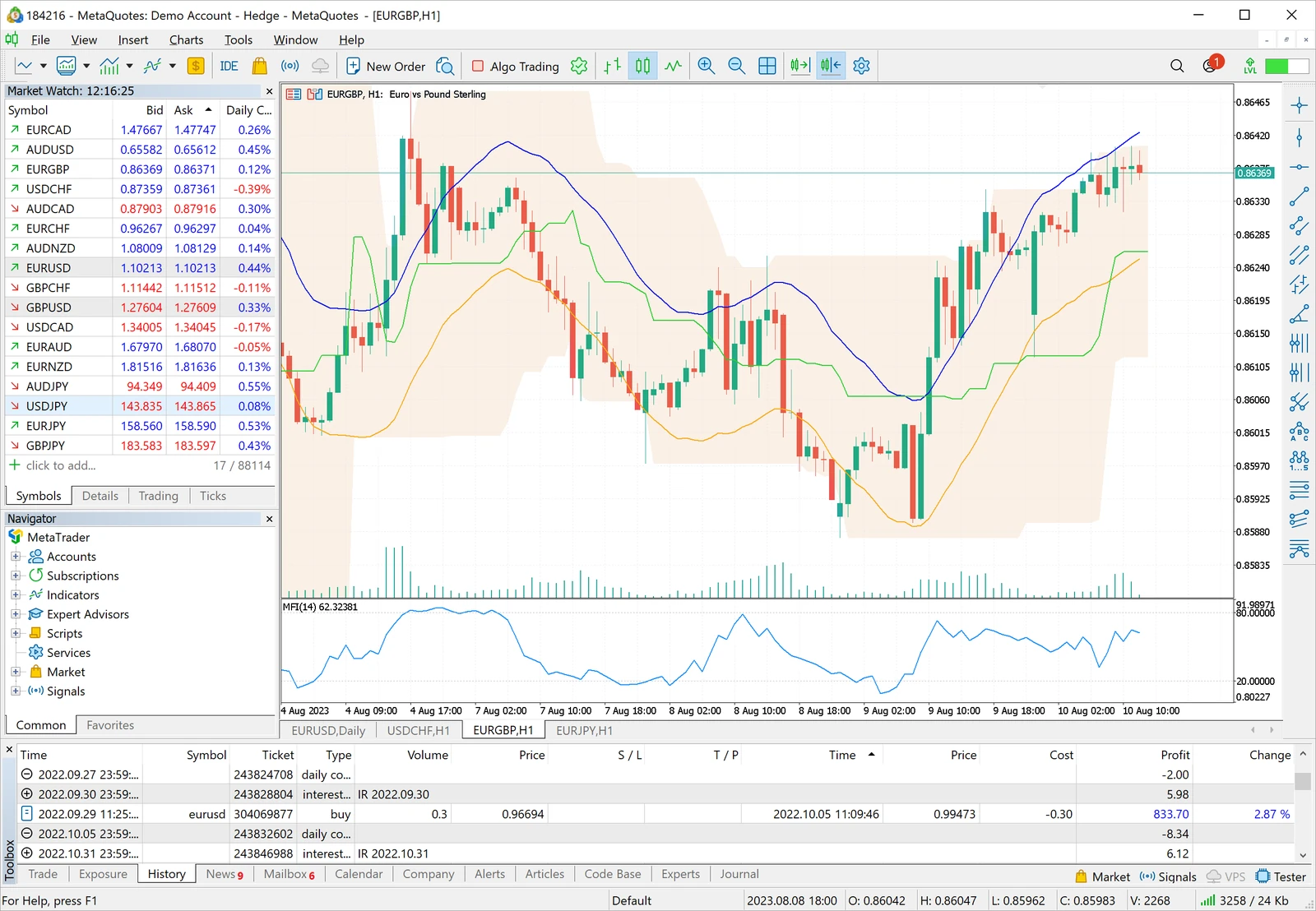
In the desktop screenshot above, the two left panels help you choose what to look at and which account or tool to use. The chart takes the centre. The lower panel shows records and account activity. If a panel is missing, bring it back from the View menu.
Market Watch
Find symbols and inspect Bid and Ask. Right-click a symbol to open its chart or specification. The spread is the difference between those two quoted prices.
Navigator
Check which account is connected. Find indicators and Expert Advisors here before adding them to the chart.
Chart
Read the symbol and timeframe before changing indicators. Switching from an hourly chart to a daily chart changes how prices are grouped, not the execution terms.
Toolbox
Use Trade to inspect open positions and pending orders, History for completed activity and Journal when something fails.
Practise placing and managing a demo order
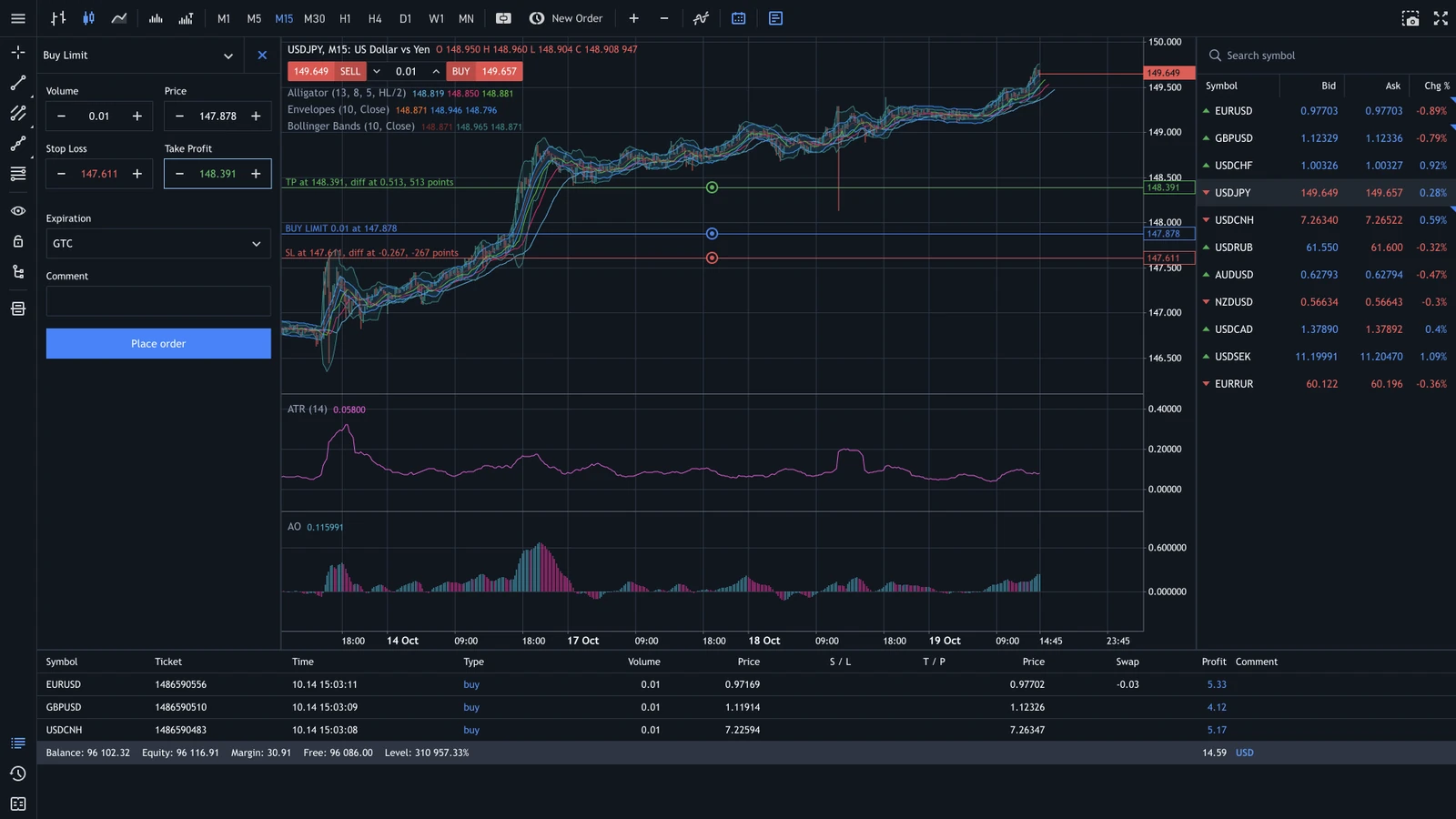
Keep One Click Trading off while you learn. On desktop, right-click the symbol in Market Watch and select New Order. The order type, execution options and available controls depend on that symbol and server.
- Check symbol and volume. Read volume in lots and verify the contract size. For an illustrative FX contract of 100,000 base units per lot, 0.10 lot represents 10,000 units. It does not tell you the cash at risk. For a one-pip estimate, use the Pip Value Calculator.
- Choose the order type deliberately. A market request seeks execution under the available conditions. A pending order waits for its specified trigger or price conditions and can remain unfilled. For example, a Buy Limit is used for a specified buy price below the current market, subject to execution conditions.
- Review price levels before submitting. If the ticket supports them, check Stop Loss and Take Profit, their direction relative to the order and any minimum distance. Include position size, spread, costs and potential slippage in your risk assessment.
- Check what actually happened. In Toolbox → Trade, find the pending order or open position. Practise modifying or cancelling a pending order, and separately closing a demo position. On a netting account, another fill on the same symbol can change the existing position.
 View full size
A stop level is not a guaranteed fill price. Gaps, execution conditions and liquidity can affect the fill. Take Profit is an exit instruction, not a prediction. A rejected order may never have reached the state you intended. Consult the official guide to executing trades for the precise controls.
Use indicators and test an Expert Advisor
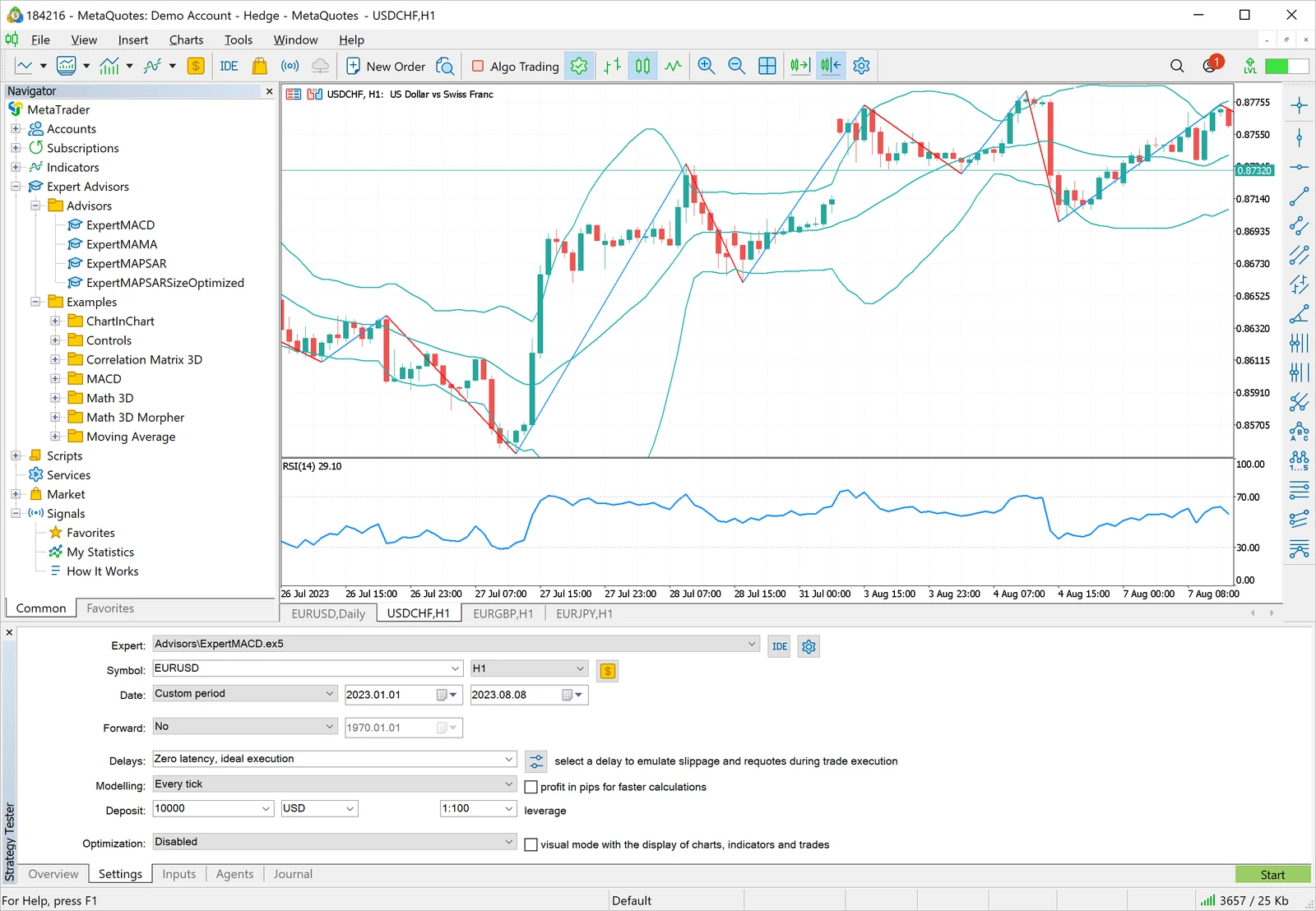
Start with one indicator on a demo chart and change one setting at a time. An indicator describes or transforms price data. An Expert Advisor is a program that can automate analysis and, with permission, submit orders. Review its source if available, inputs and permissions before enabling automated trading.
In desktop MT5, use Strategy Tester to replay historical data. Record the symbol, dates, model and assumptions you used. Try a separate test period and check logs for errors. Results depend on data and modelling. A backtest cannot reproduce every live fill or guarantee performance.
 View full size
MT4 vs MT5: what matters when switching?
Existing tools
MT4 uses MQL4 and MT5 uses MQL5. An MT4 script, indicator or EA may need a separate MT5 version. Confirm compatibility and retest on a demo before relying on it.
Account behaviour
MT5 supports netting and hedging account modes. Check which the provider actually offers and how that affects position management. Compare the exact products and execution terms you would use.
What to verify before choosing an MT5 broker
MT5 availability answers a software question. Verify the legal entity serving your residence, its permissions for the relevant product and the account that offers the platform. Then review contract size, spread, commission, financing and execution terms. Confirm whether you would own the asset or trade a derivative of it.
Use the account you would actually consider to test device access and symbol availability. Read how GlobeTrade10x evaluates brokers to see how residence and entity affect the comparison.
Start with your circumstances. If the check returns no verified matches, use the questions above to continue your own research.
GT10x / VERIFIED RESEARCH
Broker Fit Engine
Find a research starting point for your residence, budget and markets. Only verified routes can appear.
Informational research, not personal financial advice. No broker is shown without a verified route.
Affiliate disclosureFix common MT5 problems
Why does MT5 show “No connection” or reject my login?
Check your connection and the exact server, especially the distinction between demo and live. Verify that you are using the trading account login, which can differ from your provider portal login. If prices are visible but trading is disabled, check whether the credentials are read-only. Consult the Journal before trying again.
Why can’t I find a symbol or place an order?
Check the available symbols in Market Watch and whether the name has a suffix. If the instrument is present but the order is rejected, check its trading hours, volume step, minimum stop distance and account permissions. The error and the instrument specification will help isolate the cause.
Can I use a demo without funding an account?
A demo uses simulated funds. Follow the registration steps of the demo server you choose and confirm what its terms allow. There is no need to practise with a live deposit.
Does installing MT5 give me the same instruments on every device?
The provider, server and account control the available instruments. Desktop, web and mobile expose different controls. Check the intended workflow on every device you expect to use.
Official references
- MetaTrader 5 desktop workspace and demo account setup
- MetaTrader 5 trading operations and Web Terminal
- MT5 Strategy Tester and MT4 platform documentation
- MetaQuotes Media Gallery for the historical demonstration screenshots
GlobeTrade10x provides educational research. Trading can result in losses, particularly when using leverage. Check product and account terms before using live funds.