
Platform research
Choose a trading platform that fits your workflow
A chart shows you the market. The account connected to it determines what you can trade, which order controls are available and what it costs. Compare both before committing to a setup.
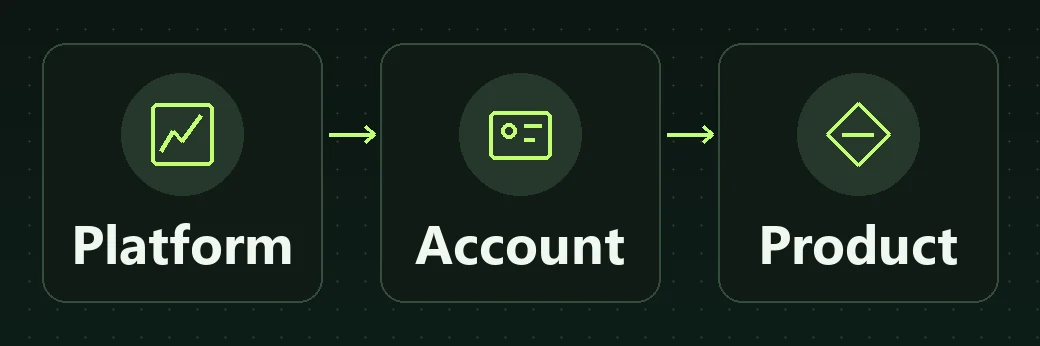
The platform and the broker account do different jobs
Your broker provides the account. You use the trading platform to view prices, place orders and manage positions. When a feature or market is missing, that distinction helps you decide whether to check the software or the account terms.
What you do in the platform
Read charts, set alerts, manage watchlists and use the order ticket. Check how the interface shows trade size and risk, and how quickly you can amend or cancel an order on your device.
What your account determines
Check which firm provides the account, the countries and clients it can serve, the available products, and the fees and execution terms that apply. A chart may be available even when an order on that product is unavailable.
Read the instrument specification. A chart with a familiar share, index or crypto symbol can represent different products. Check the contract and how it settles before assuming you would own the underlying asset.
MT4, MT5, cTrader and TradingView compared by task
Use the software differences to build a short test. Once you know what the platform should do, verify those features on the account, device and app you would use.
MetaTrader 4
MetaQuotes MT4 documentationWorkflow
Choose MT4 to evaluate a Forex workflow or a tool built for MT4. The platform supports charts and market and pending orders.
What to verify
MetaQuotes provides desktop automation with Expert Advisors and custom indicators, as well as mobile and web clients. Check the account server and the specific MT4 tools you need.
MetaTrader 5
MetaQuotes MT5 documentationWorkflow
Look at MT5 when you need more detailed order or analysis workflows across markets. Symbols, execution settings and order availability can vary by provider.
What to verify
MT5 offers Expert Advisors in MQL5 and a Strategy Tester. Check your software version, broker server and symbol specification before reusing a setup from MT4.
Workflow
Evaluate the chart and order-entry workflow, including the order controls you need. Spotware documents order types and position management for cTrader Windows.
What to verify
cBots can run in the cloud. Spotware documents local instances on Windows and Mac. Check which client you need for development, testing or monitoring before choosing an account.
TradingView
TradingView trading documentationWorkflow
Start here if charting, alerts or watchlists drive your routine. To send live orders, confirm that your account can connect through the supported integration.
What to verify
Paper Trading is a simulation. Pine Script strategies use an emulator for backtests. Check the supported order controls and broker connection on the device you intend to use.
Try the task you actually need to do
Choose the test that matches your routine. Repeat it in the browser, desktop client or mobile app you expect to use most.
Learning the basics
Open a demo where available. Find one instrument, read the contract details, preview an order and locate your positions and history. You should be able to explain each field before funding an account.
Trading from a phone
On the phone you would use, open the order ticket and check the quantity, price, stop and target fields. In a demo, change an order and find the new details in the order list. Confirm you can find the cancel control and check which alerts and features carry over from desktop.
Using advanced orders
Try the order type and size you expect to use. Record how the platform shows rejected orders, position changes and cancellation. Review how your provider handles a stop when prices move quickly.
Automating or testing
Check the script language, supported account and symbol, where the code runs, and what happens when a device disconnects. Review the data and fill assumptions in a backtest before relying on it.
A short test before you choose an account
- Confirm the server, account type and exact symbol, including any suffix. Read its minimum size, currency and contract terms.
- In a demo where available, prepare a small test order, review size and direction, set an exit and find where changes or rejections are shown.
- Compare the documented live fees, order rules and markets with the demo. Simulation helps you learn the controls. Live fills, market depth and costs can differ.
Practical walkthrough
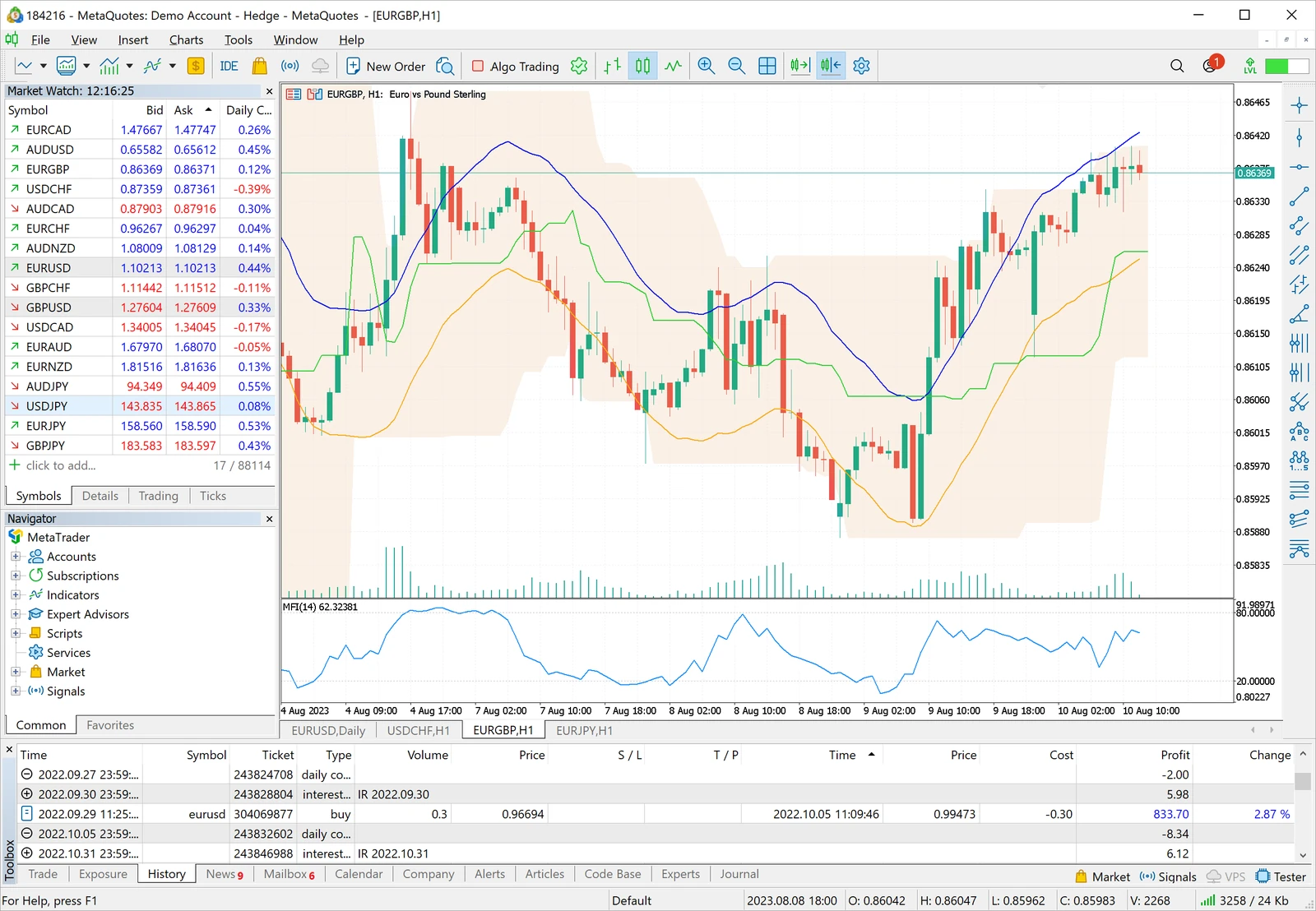
See how the MT5 workspace fits together
Follow the guide from the account server and watchlist to the order ticket. It shows where to check a symbol’s specification, practise an order in a demo and find the resulting position.
Confirm the account before you connect
Ask the provider to confirm the platform, server, account type and exact products for your country. A feature on a platform’s website tells you what the software can do. Your account agreement and product specifications tell you what is available to you. If the app lists several servers, copy the exact name from your account portal or welcome email and confirm whether the login is for a demo or live account.
If the next question is about provider fit, open the Broker Fit Engine. A verified match may be unavailable for your profile. Use our research methodology to check the account directly.
Frequently asked questions
Can I use the same account across two platforms?
Only if the provider supports both connections for that account. Confirm the server, account type, app and permissions. Some providers issue separate platform accounts.
What does a demo tell me about live trading?
A demo helps you learn navigation, order entry and position management. Check live terms separately for price feeds, fills, order restrictions, financing and commissions.
Can I move an MT4 robot to MT5?
Check whether the tool has an MT5 version and the right MQL5 code. Validate it against the account, symbol and test data you are actually using.
Is a charted symbol always tradable in my account?
Confirm it in the connected account’s instrument list and specification. The symbol may be a data feed, a derivative or a different product with similar naming.
Research and disclosure
Platform links serve as technical references. CFDs involve leverage and losses can build quickly. Verify product terms and protections for your jurisdiction and client category. See our research standards and how we make money.